Getting Started Guide
WBKey-Supported Application
Introduction
WBKey is a powerful single sign-on (SSO) platform that allows you to access multiple applications with just one account. With WBKey, you no longer need to remember multiple usernames and passwords for each application. Simply create a WBKey account, and you can sign in to all supported applications seamlessly that your account is approved for.
This guide provides step-by-step instructions for getting started with the WBKey-supported application, including registration, logging in, and account management. Please refer to the WBKey Help Center for further assistance: https://www2.waterboards.ca.gov/wbkey/help. The Help Center includes frequently asked questions (FAQ), which provides answers to common account-related questions. Certain FAQs include step-by-step instructions and/or walkthrough video demonstrations.
Registration for New WBKey Account
This section provides step-by-step instructions for registering or requesting access for the WBKey-supported application as a new WBKey user. Please refer to the following article for further assistance: https://www2.waterboards.ca.gov/wbkey/help/article/how-to-create-account.
- Navigate to the WBKey-supported application.
- Click the link/button to register or request access to the WBKey-supported application. The exact text for the link/button can vary by application, but may be one of the following: Register, Request Access, Registration, or Get Started. Please follow any on-screen instructions in the WBKey-supported application for how to register or request access.
-
Note: for WBKey-supported applications, the minimum required data to create a WBKey account includes:
- Email Address
- Verification Code (via email verification process)
- First Name
- Last Name
- Password
- Password Confirmation
- On the the WBKey-supported application registration form, enter your Email Address.
- Click the 'Send Verification Code' button. This will trigger an email to your inbox with a verification code. Once this button is clicked, you should see a 'Verification Code' textbox.
- Go to your email inbox to retrieve the verification code. The email will be from 'DoNotReply@waterboards.ca.gov' email address and have a subject line of 'WBKey Account Email Verification'.
- On the the WBKey-supported application registration form, enter the verification code and click the 'Submit Verification Code' button.
- Once the verification code is verified, enter First Name and Last Name for your WBKey account.
- Enter Password and Password Confirmation for your WBKey account. Please refer to this article for WBKey password criteria: https://www2.waterboards.ca.gov/wbkey/help/article/password-requirements
- There may be additional data required for registering with the the WBKey-supported application. Finish filling out the remaining data fields. Once the form is completed for all required information, click the button to submit the registration form.
- After the registration form has completed processing, you should receive notification that registration was successful for the WBKey-supported application.
- Once your account is approved for access, you can login with your new WBKey account for the first time (see Initial Login for New WBKey Account section below for further instruction). Please keep in mind that account approvals may happen automatically or require review by an application administrator, so account approval times can vary.
Registration for Existing WBKey Account
This section provides step-by-step instructions for registering or requesting access for the WBKey-supported application as an existing WBKey user. Please refer to the following article for further assistance: https://www2.waterboards.ca.gov/wbkey/help/article/how-to-request-access.
- Navigate to the WBKey-supported application.
- Click the link/button to register or request access to the WBKey-supported application. The exact text for the link/button can vary by application, but may be one of the following: 'Register', 'Request Access', 'Registration', or 'Get Started'. Please follow any on-screen instructions in the WBKey-supported application for how to register or request access.
-
Note: for WBKey-supported applications, the minimum required data to register or request access for an existing WBKey account includes:
- Email Address
- Verification Code (via email verification process)
- On the the WBKey-supported application registration form, enter your Email Address.
- Click the 'Send Verification Code' button. An email will be sent to your inbox with a verification code, and a 'Verification Code' textbox and 'Submit Verification Code' button should appear.
- Go to your email inbox to retrieve the verification code. The email will be from 'DoNotReply@waterboards.ca.gov' email address and have a subject line of 'WBKey Account Email Verification'.
- On the the WBKey-supported application registration form, enter the verification code from the email and click the 'Submit Verification Code' button.
- After the verification code is verified, First Name and Last Name should get populated automatically based on your existing WBKey account information.
- There may be additional data required for registering with the the WBKey-supported application. Finish filling out the remaining data fields. Once the form is completed for all required information, click the button to submit the registration form.
- After the registration form has completed processing, you should receive notification that registration was successful for the WBKey-supported application.
- Once your account is approved for access, you can login with your existing WBKey account (see Login After Initial WBKey Account Configuration section below for further instruction). Please keep in mind that account approvals may happen automatically or require review by an application administrator, so account approval times can vary.
Initial Login For WBKey Account
This section provides step-by-step instructions to login for the first time to the WBKey-supported application with a WBKey account. Please refer to the following article for further assistance: https://www2.waterboards.ca.gov/wbkey/help/article/wbkey-initial-login.
- Navigate to the WBKey-supported application.
- Click the 'Log In' or 'Sign In' button/link. You will be redirected to the WBKey login screen.
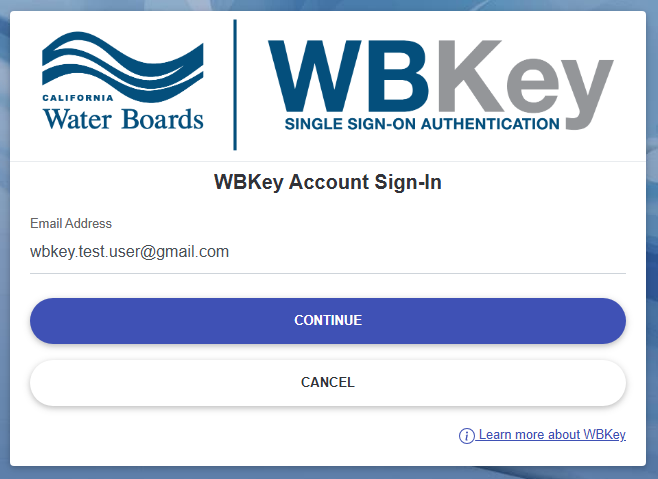
- Enter the email address associated with your WBKey account and click the 'Continue' button.
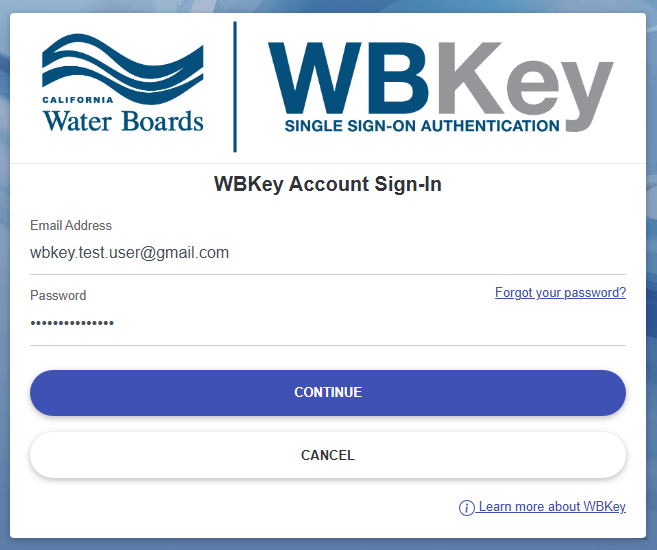
- Enter the password associated with your WBKey account and click the 'Continue' button.
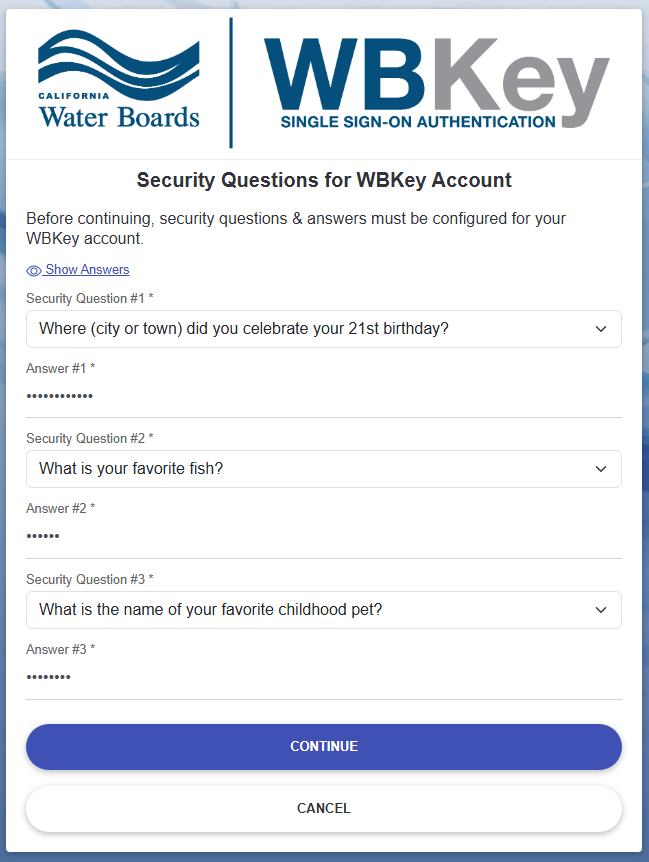
- You will be asked to select security questions and provide answers to each - this will be used for identity verification of your WBKey account. Please select each required security question and enter an answer for each. Click the 'Continue' button to complete the initial login process and get signed into the WBKey-supported application.
- Multi-factor Authentication (MFA) Enrollment
- Authenticator App MFA Method (get a verification code through an app on your mobile device)
- Select the 'Authenticator App' option for your MFA method and click the 'Continue' button.
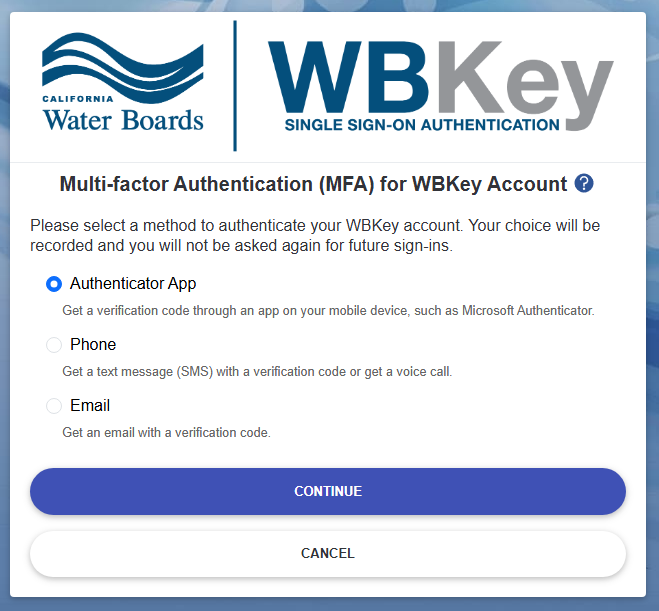
- A screen will be displayed with instructions for how to configure MFA for the Authenticator App method.
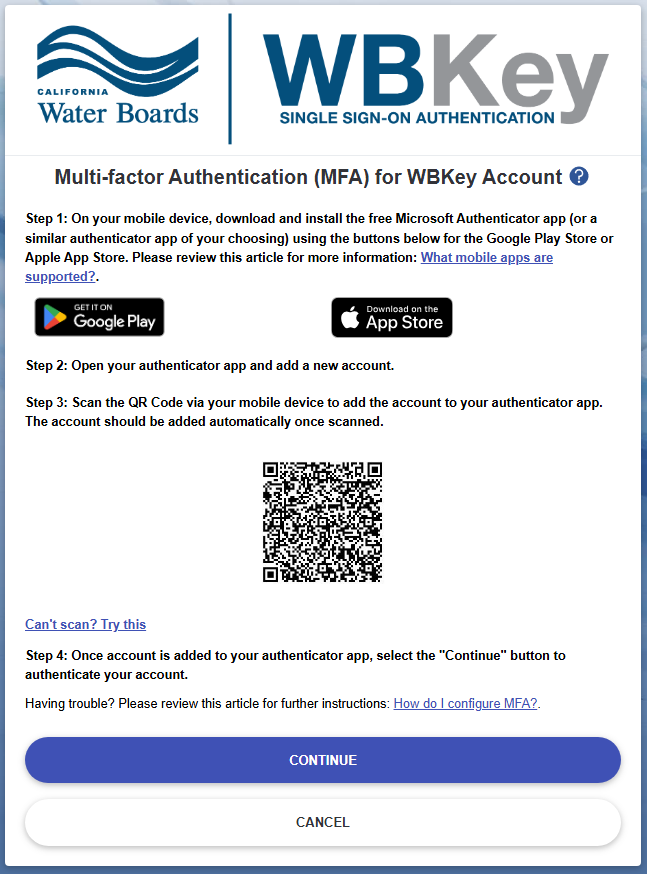
- On your mobile device, download and install the authenticator app on your mobile device, if not already installed. It is highly recommended to use the free Microsoft Authenticator app, but not required - you can use any similar authenticator app of your choosing. Here are links for downloading the Microsoft Authenticator app:
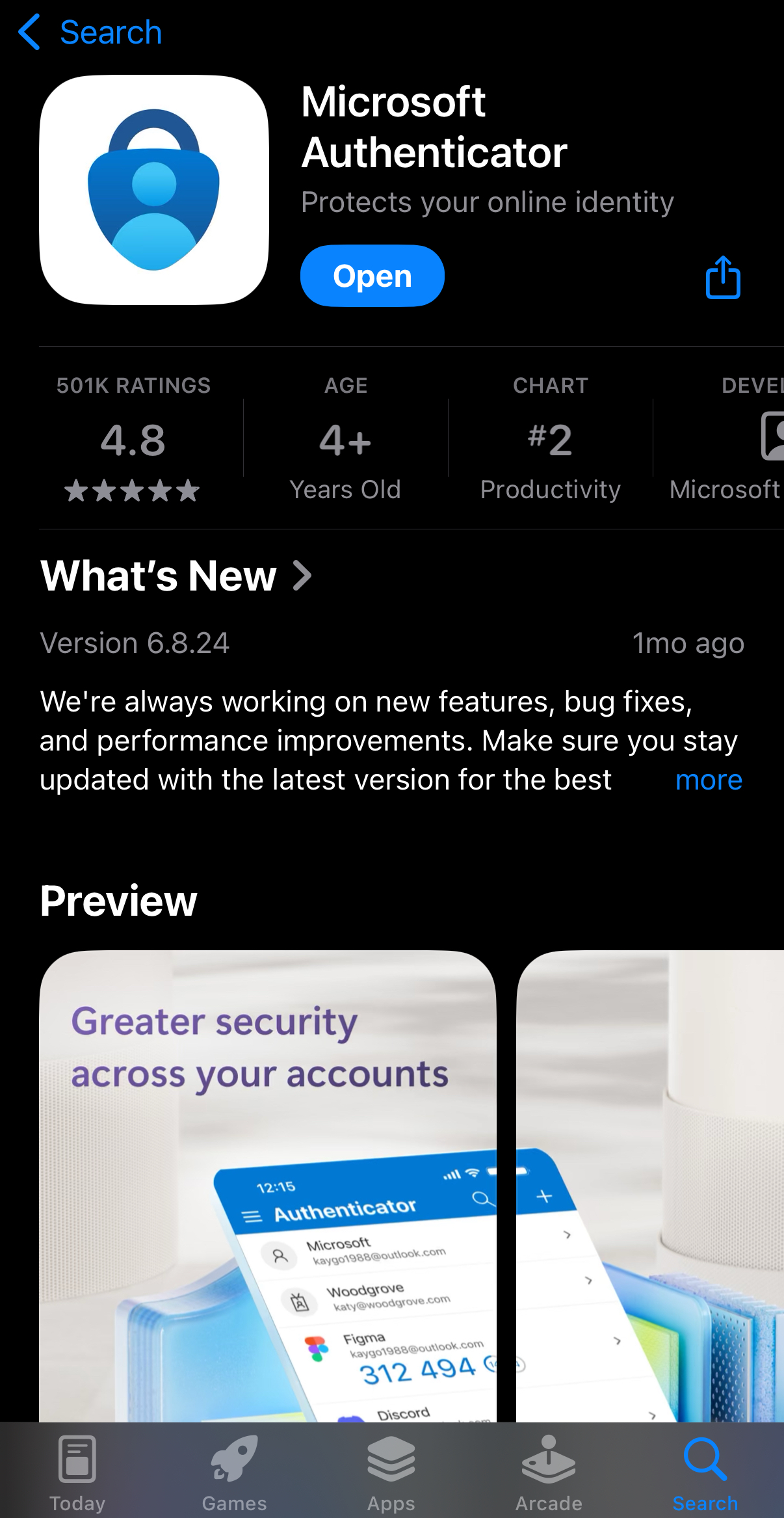
- Once the app has been installed, open the app on your mobile device.
- Please note that the following steps 5(a)(vi) - 5(a)(xi) describe how to configure specifically for the Microsoft Authenticator app, as that is the recommended app. These steps may vary for other authenticator apps.
- Click the 'Accept' button to accept the privacy terms of use.
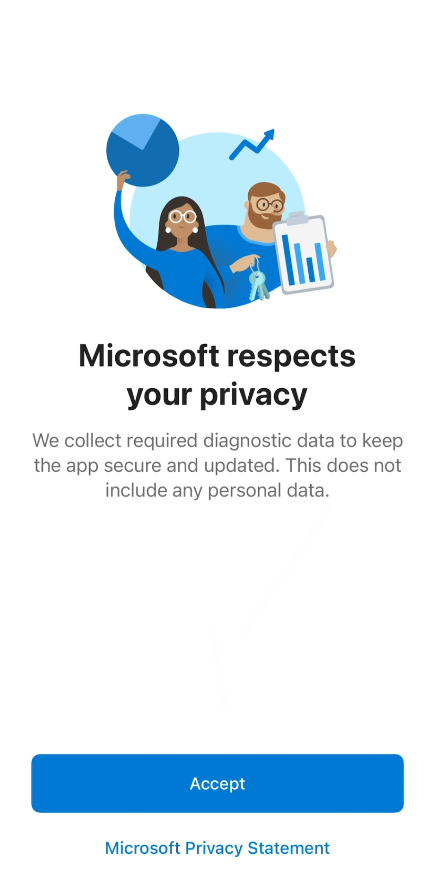
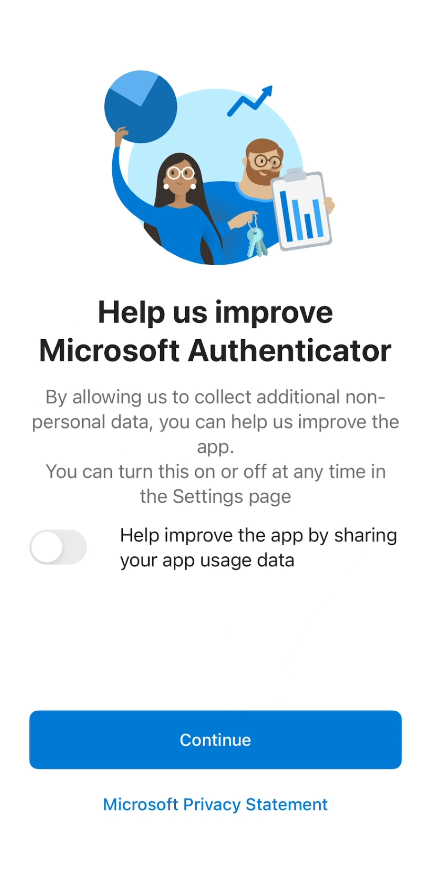
- You may be asked to help improve the app by sharing usage data. This option is not required and you can disable it by unchecking the toggle/checkbox. Click the 'Continue' button.
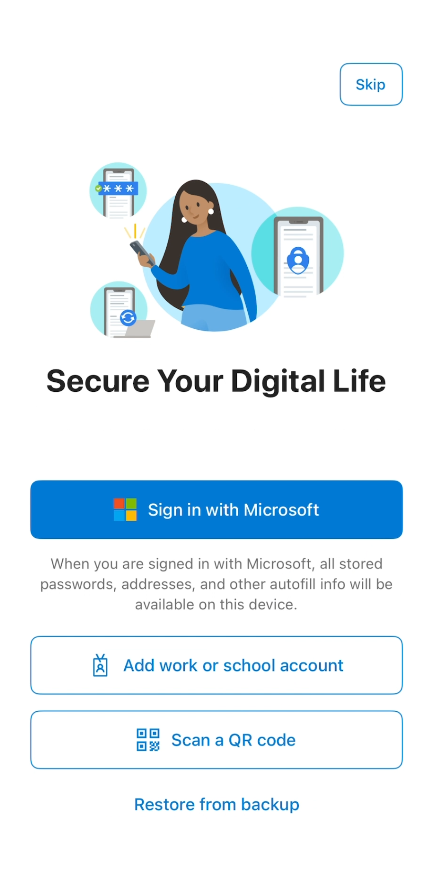
- Click the 'Scan a QR code' button. If you do not see this option, follow on-screen instructions to add a new account and select option to scan a QR code.
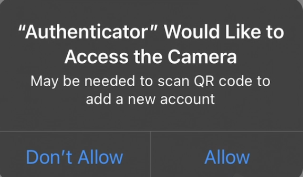
- You may be asked to allow access to your mobile device's camera. Click the 'Allow' button.
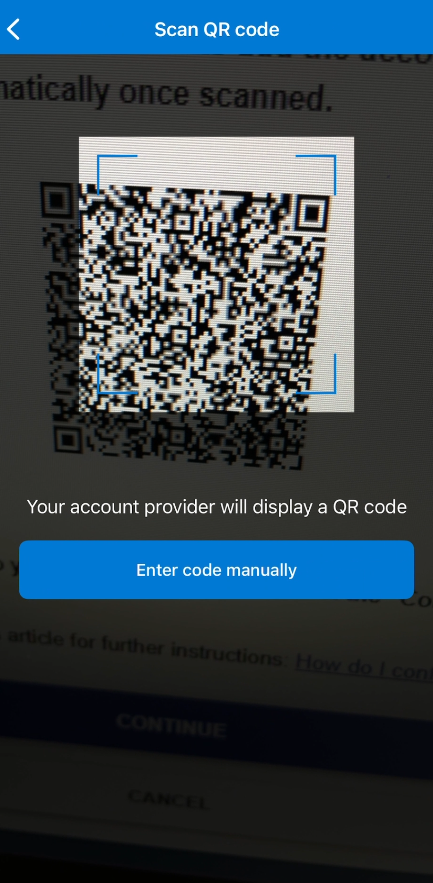
- Scan the QR code with your phone's camera on the WBKey login screen from step 5(a)(ii)
- After the app on your mobile device recognizes the QR code, the account will automatically be added to your app. You will see the Water Boards WBKey account with your WBKey email address. Additionally, there will be a verification code that automatically regenerates every 30 seconds. This code will be used to verify your account for the WBKey login process.
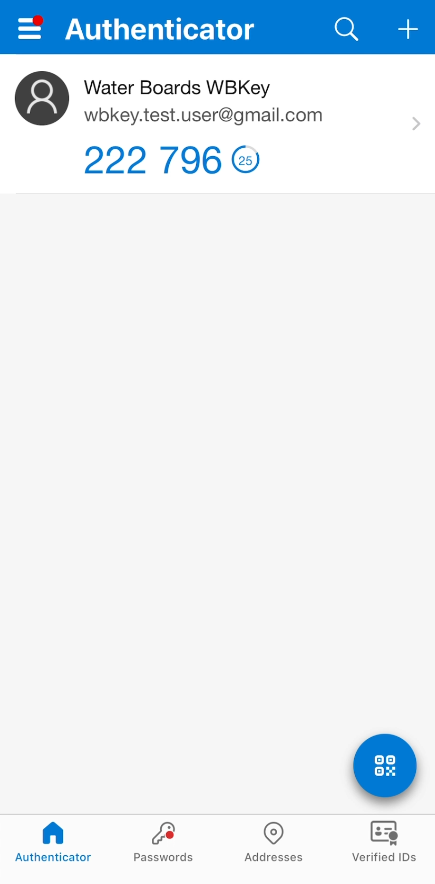
- On the WBKey login screen, enter the current verification code from the authenticator app and click the 'Verify Code' button.
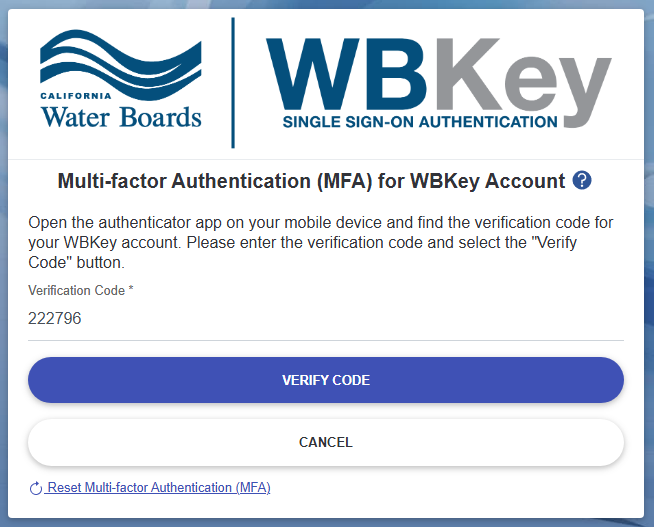
- Select the 'Authenticator App' option for your MFA method and click the 'Continue' button.
- Phone MFA Method (get a text message (SMS) with a verification code or get a voice call)
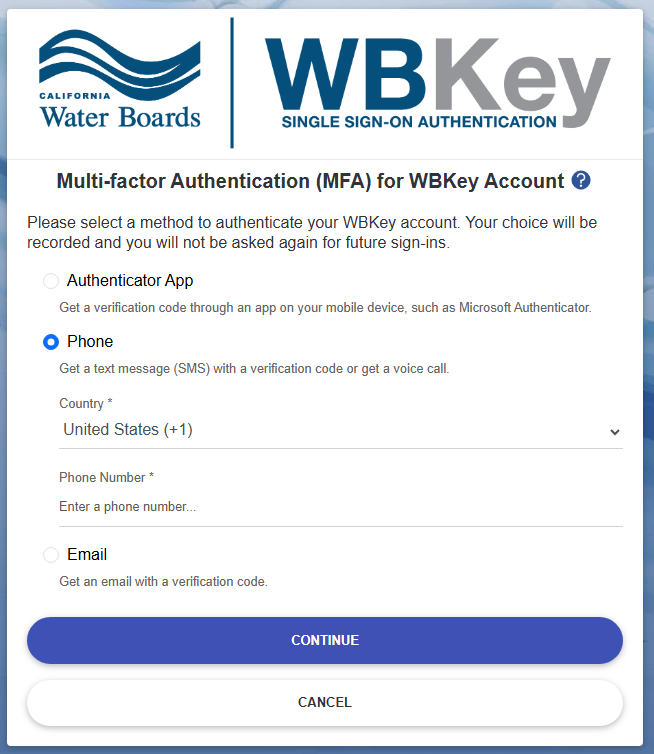
- Select the 'Phone' option for your MFA method. Country and Phone Number fields will appear.
- Select the country code and enter your phone number. Click the 'Continue' button.
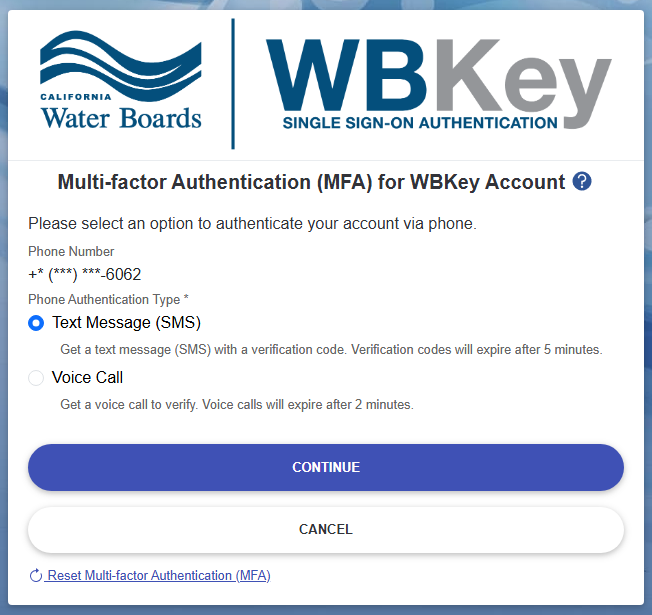
- Select a Phone Authenticate Type option to verify your WBKey account via text message (SMS) or voice call.
- Text Message (SMS)
- Select the 'Text Message (SMS)' option and click the 'Continue' button.
- A SMS text message will be sent to your phone with a verification code.
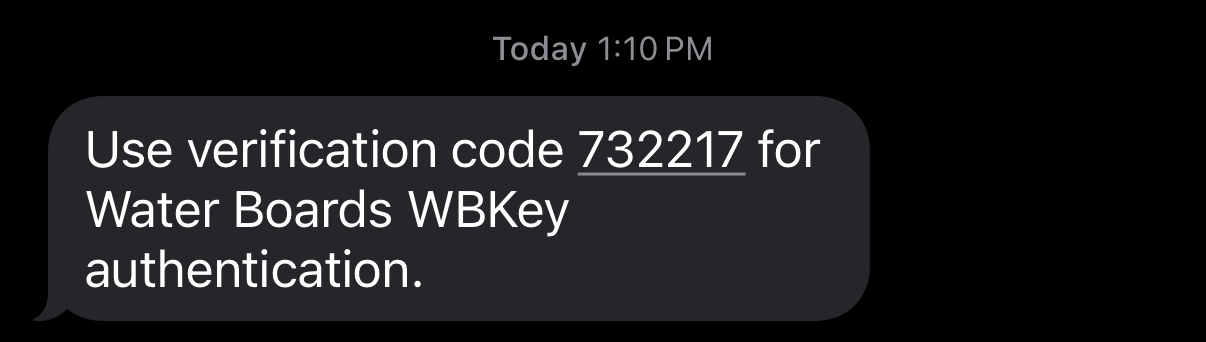
- Enter the verification code and click the 'Verify Code' button.
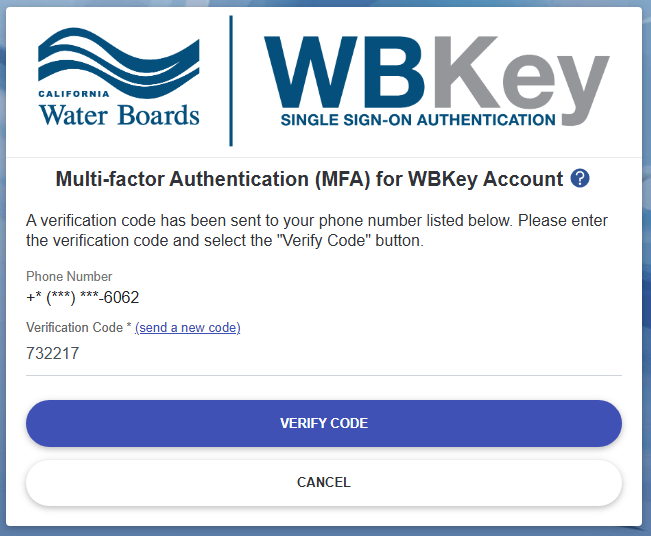
- Select the 'Text Message (SMS)' option and click the 'Continue' button.
- Voice Call
- Select the 'Voice Call' option and click the 'Continue' button.
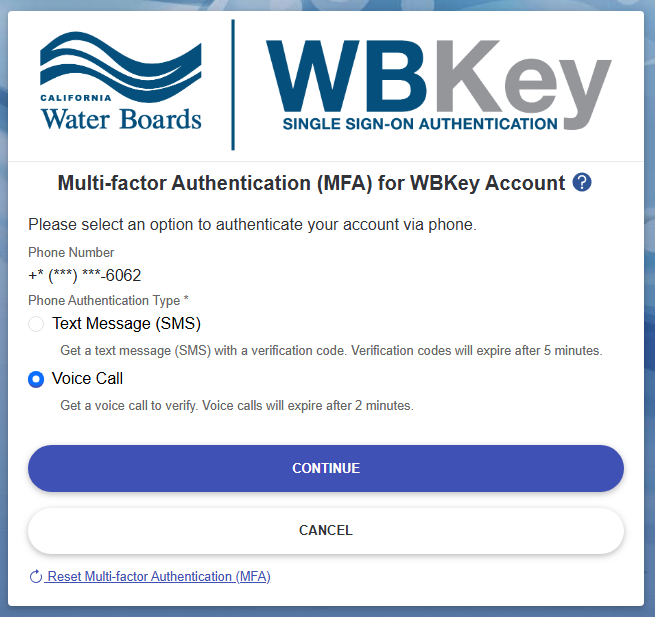
- A voice call will be initiated to your phone. You will hear an automated message asking you to verify your account by selecting your phone's # key.
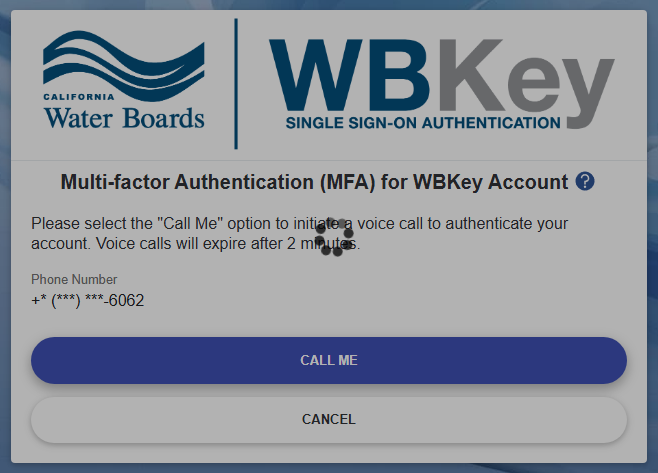
- Select the 'Voice Call' option and click the 'Continue' button.
- Text Message (SMS)
- Email MFA Method (get an email with a verification code)
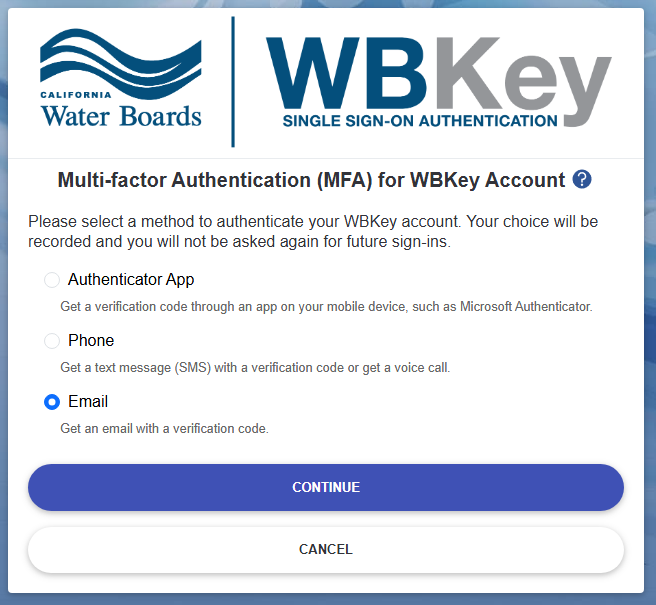
- Select the 'Email' option for your MFA method and click the 'Continue' button.
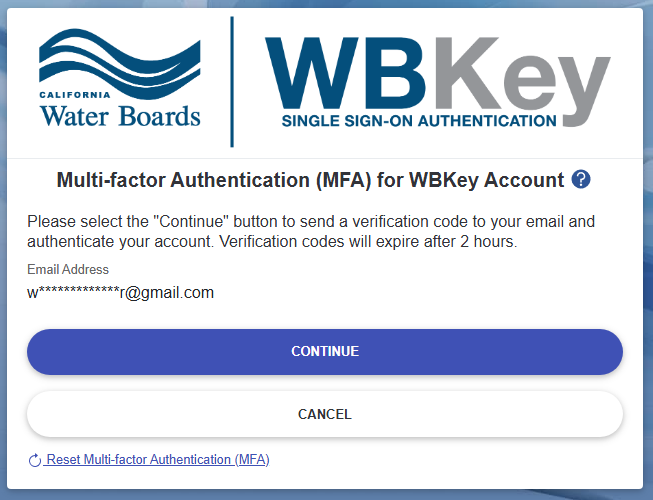
- Click the 'Continue' button to initiate sending a verification code to your WBKey account's email.
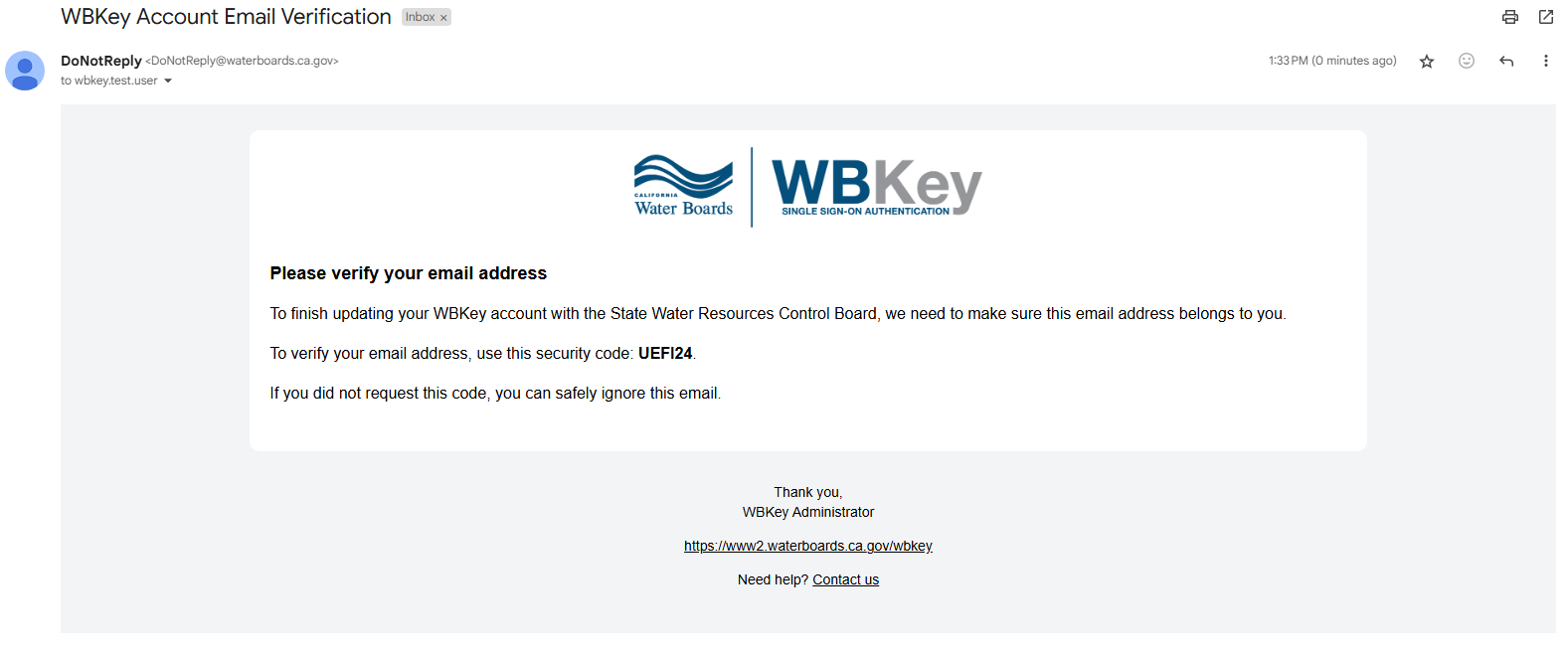
- You will receive the verification code in your WBKey account's email inbox from 'DoNotReply@waterboards.ca.gov'.
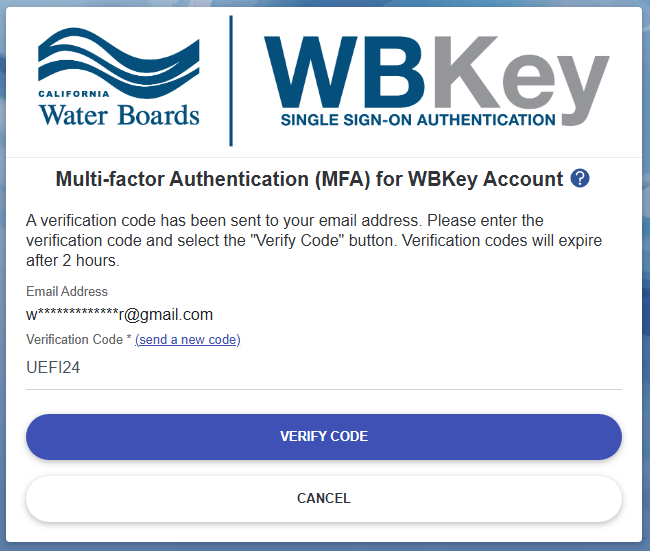
- Enter the verification code from the email received and click the 'Verify Code' button.
- Select the 'Email' option for your MFA method and click the 'Continue' button.
- Authenticator App MFA Method (get a verification code through an app on your mobile device)
- After MFA is configured for your WBKey account, you will be asked to review and agree to the Water Boards Conditions of Use and Privacy Policy. Check the checkbox once you have read and agree to the terms. Click the 'Continue' button.
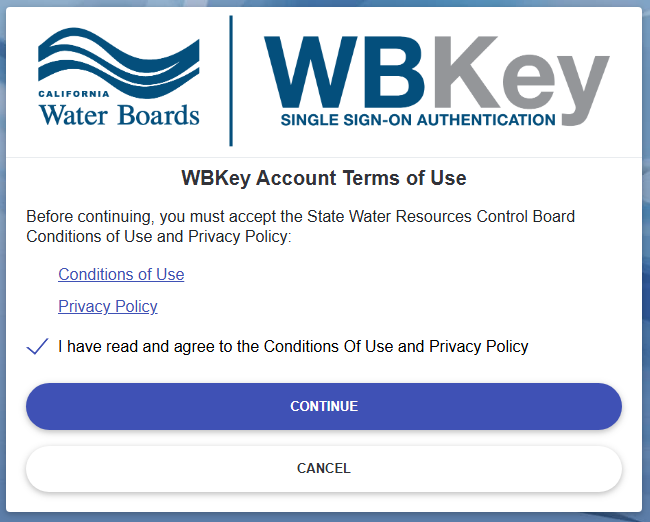
- You have successfully logged into the WBKey-supported application!
Login After Initial WBKey Account Configuration
This section provides step-by-step instructions to login to the WBKey-supported application with an existing WBKey account after the initial login.
- Navigate to the WBKey-supported application.
- Click the 'Log In' or 'Sign In' button/link. You will be redirected to the WBKey login screen.
- Enter the email address associated with your WBKey account and click the 'Continue' button.
- Enter the password associated with your WBKey account and click the 'Continue' button.
- Multi-factor Authentication (MFA) Verification
- Prerequisite: MFA is already configured for your WBKey account. Please refer to the Initial Login section for further instructions on MFA enrollment.
- Authenticator App MFA Method
- On your mobile device, open the authenticator app. For this example, the recommended Microsoft Authenticator app is referenced.
- Find your WBKey account within the authenticator app to view the current verification code. The code regenerates every 30 seconds.
- On the WBKey login screen, enter the current verification code from the authenticator app and click the 'Verify Code' button.
- Phone MFA Method
- Select a Phone Authenticate Type option to verify your WBKey account via text message (SMS) or voice call.
- Text Message (SMS)
- Select the 'Text Message (SMS)' option and click the 'Continue' button.
- A SMS text message will be sent to your phone with a verification code.
- Enter the verification code and click the 'Verify Code' button.
- Select the 'Text Message (SMS)' option and click the 'Continue' button.
- Voice Call
- Select the 'Voice Call' option and click the 'Continue' button.
- A voice call will be initiated to your phone. You will hear an automated message asking you to verify your account by selecting your phone's # key.
- Select the 'Voice Call' option and click the 'Continue' button.
- Text Message (SMS)
- Select a Phone Authenticate Type option to verify your WBKey account via text message (SMS) or voice call.
- Email MFA Method
- Click the 'Continue' button to initiate sending a verification code to your WBKey account's email.
- You will receive the verification code in your WBKey account's email inbox from 'DoNotReply@waterboards.ca.gov'.
- Enter the verification code from the email received and click the 'Verify Code' button.
- Click the 'Continue' button to initiate sending a verification code to your WBKey account's email.
- You have successfully logged into the WBKey-supported application!
Reset Password for WBKey Account
This section provides step-by-step instructions to reset your WBKey account's password. Please refer to the following article for further assistance: https://www2.waterboards.ca.gov/wbkey/help/article/reset-password.
- Navigate to the WBKey-supported application.
- Click the 'Log In' or 'Sign In' button/link. You will be redirected to the WBKey login screen.
- Enter the email address associated with your WBKey account and click the 'Continue' button.
- Click the 'Forgot your password?' link.
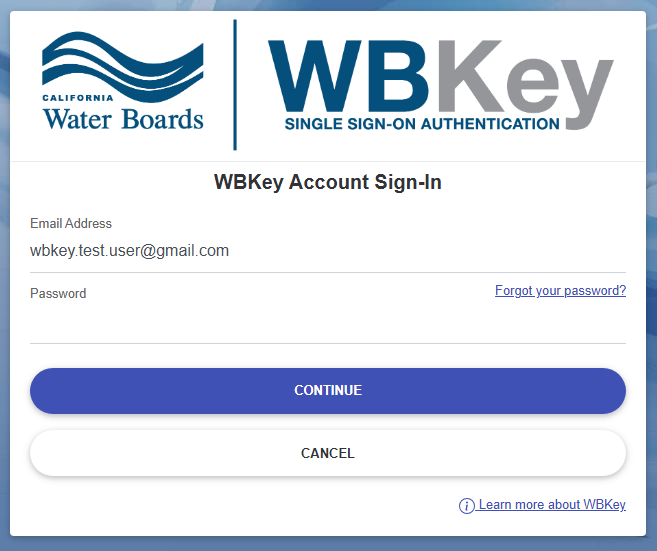
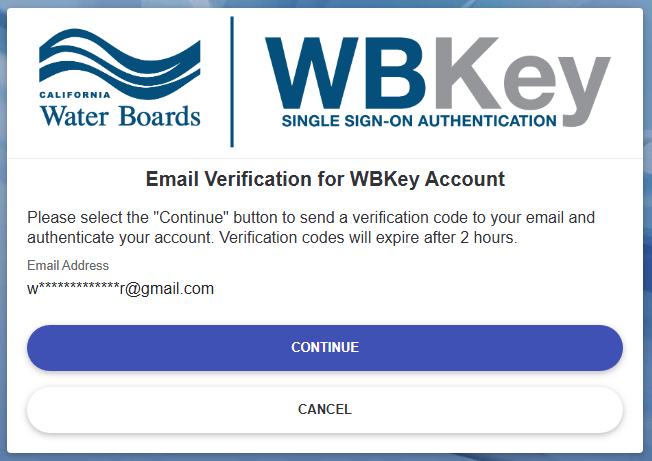
- Click the 'Continue' button to initiate sending a verification code to your WBKey account's email.
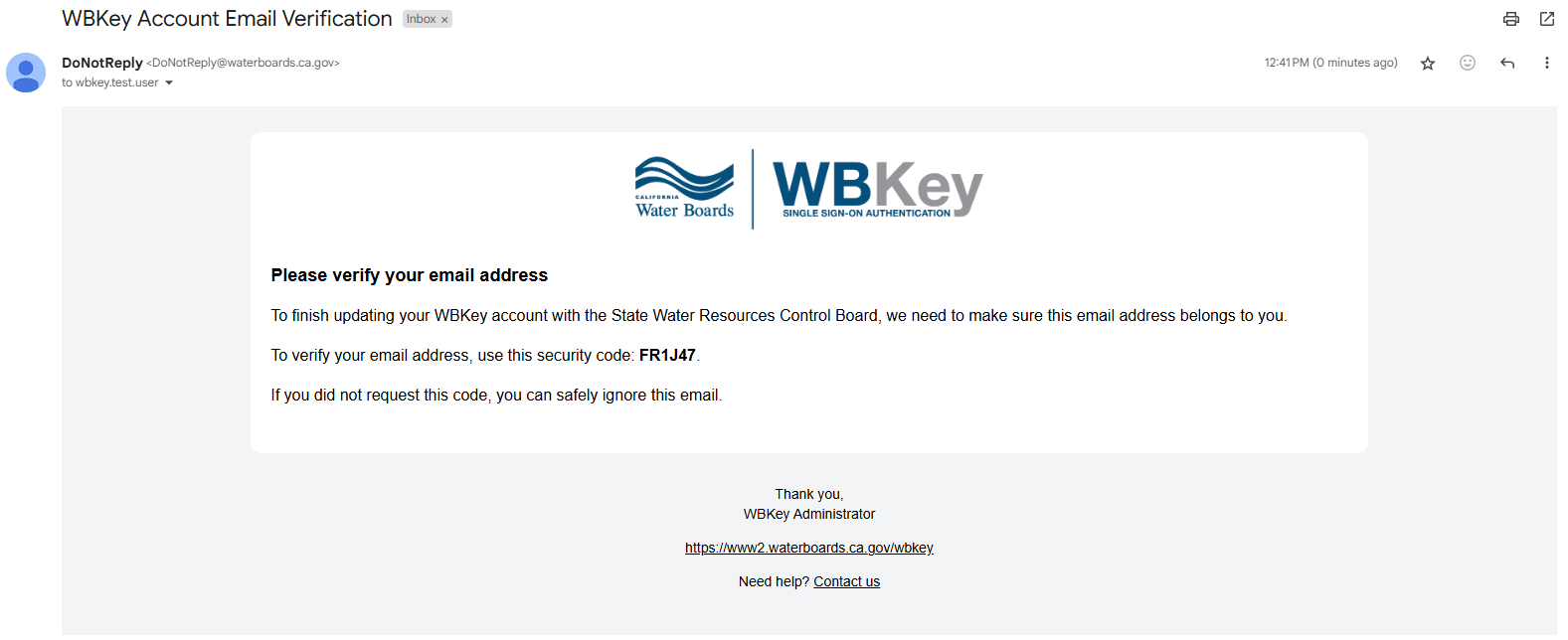
- You will receive the verification code in your WBKey account's email inbox from 'DoNotReply@waterboards.ca.gov'.
- Enter the verification code from the email received and click the 'Verify Code' button.
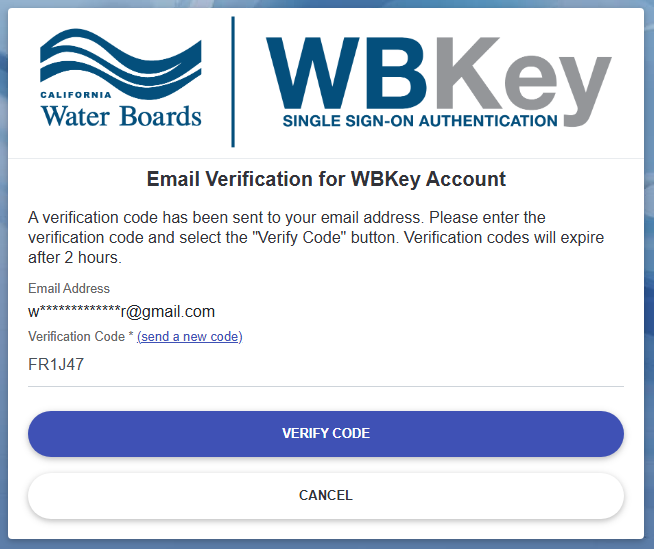
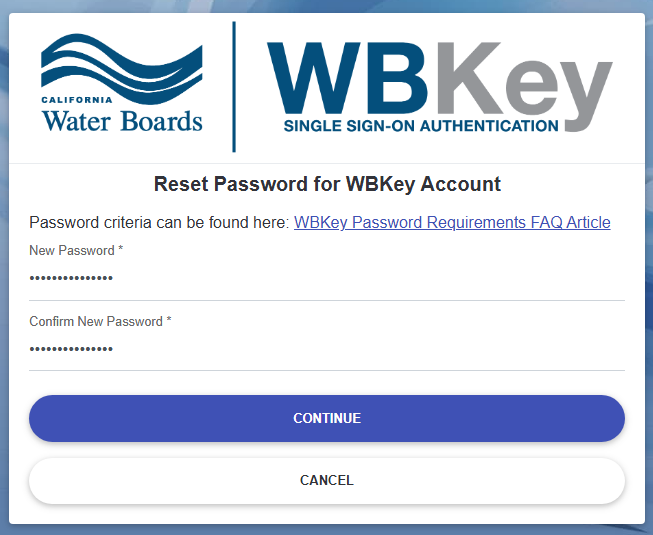
- Enter a new password in the New Password and Confirm New Password fields. Click the 'Continue' button.
- Multi-factor Authentication (MFA) Verification
- Prerequisite: MFA is already configured for your WBKey account. Please refer to the Initial Login section for further instructions on MFA enrollment.
- Authenticator App MFA Method
- On your mobile device, open the authenticator app. For this example, the recommended Microsoft Authenticator app is referenced.
- Find your WBKey account within the authenticator app to view the current verification code. The code regenerates every 30 seconds.
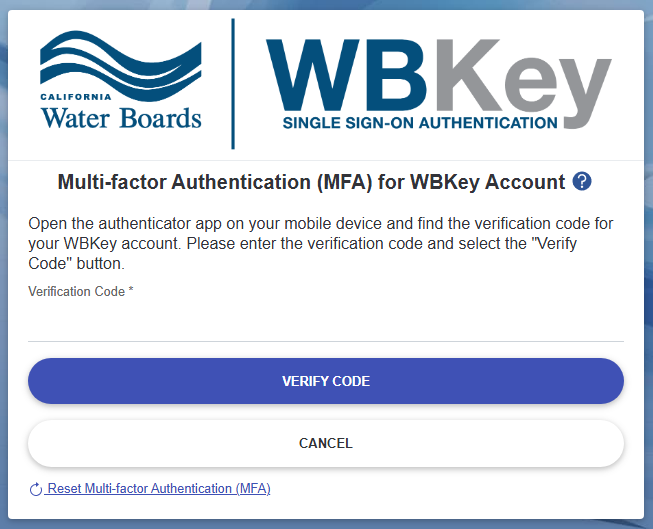
- On the WBKey login screen, enter the current verification code from the authenticator app and click the 'Verify Code' button.
- Phone MFA Method
- Select a Phone Authenticate Type option to verify your WBKey account via text message (SMS) or voice call.
- Text Message (SMS)
- Select the 'Text Message (SMS)' option and click the 'Continue' button.
- A SMS text message will be sent to your phone with a verification code.
- Enter the verification code and click the 'Verify Code' button.
- Select the 'Text Message (SMS)' option and click the 'Continue' button.
- Voice Call
- Select the 'Voice Call' option and click the 'Continue' button.
- A voice call will be initiated to your phone. You will hear an automated message asking you to verify your account by selecting your phone's # key.
- Select the 'Voice Call' option and click the 'Continue' button.
- Text Message (SMS)
- Select a Phone Authenticate Type option to verify your WBKey account via text message (SMS) or voice call.
- Email MFA Method
- Click the 'Continue' button to initiate sending a verification code to your WBKey account's email.
- You will receive the verification code in your WBKey account's email inbox from 'DoNotReply@waterboards.ca.gov'.
- Enter the verification code from the email received and click the 'Verify Code' button.
- Click the 'Continue' button to initiate sending a verification code to your WBKey account's email.
- You have successfully reset your WBKey account's password and logged into the WBKey-supported application!
Reset Multi-factor Authentication (MFA) for WBKey Account
This section provides step-by-step instructions to reset your WBKey account's MFA. If you need to change your selected MFA method or change your phone number, you will need to follow these steps to reset your WBKey account's MFA. Please refer to the following article for further assistance: https://www2.waterboards.ca.gov/wbkey/help/article/reset-mfa.
- Navigate to the WBKey-supported application.
- Click the 'Log In' or 'Sign In' button/link. You will be redirected to the WBKey login screen.
- Enter the email address associated with your WBKey account and click the 'Continue' button.
- Enter the password associated with your WBKey account and click the 'Continue' button.
- Click the 'Reset Multi-factor Authentication (MFA)' link.
- Authenticator App MFA Method
- Phone MFA Method
- Email MFA Method
- Authenticator App MFA Method
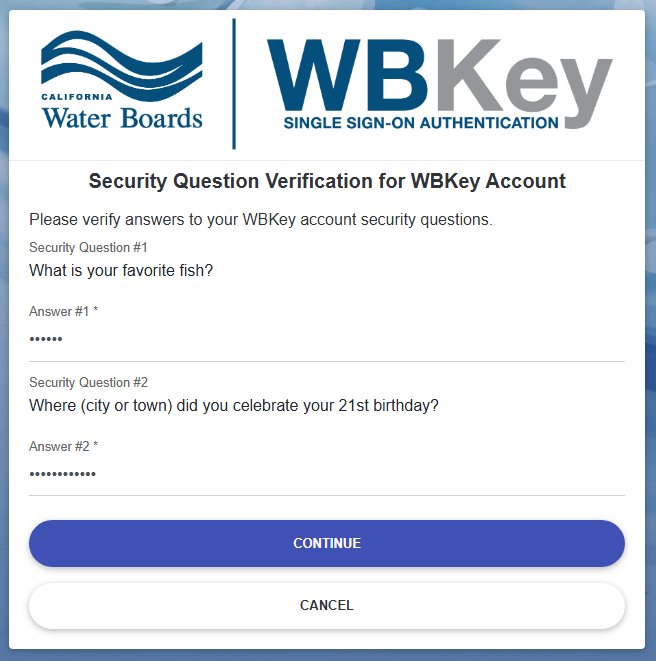
- To reset your WBKey account's MFA, you will be required to: (1) verify your security questions and (2) verify your email.
- For security question verification, enter answers to the security questions presented on-screen and click the 'Continue' button.
- For email verification, click the 'Continue' button to initiate sending a verification code to your WBKey account's email.
- You will receive the verification code in your WBKey account's email inbox from 'DoNotReply@waterboards.ca.gov'.
- Enter the verification code from the email received and click the 'Verify Code' button.
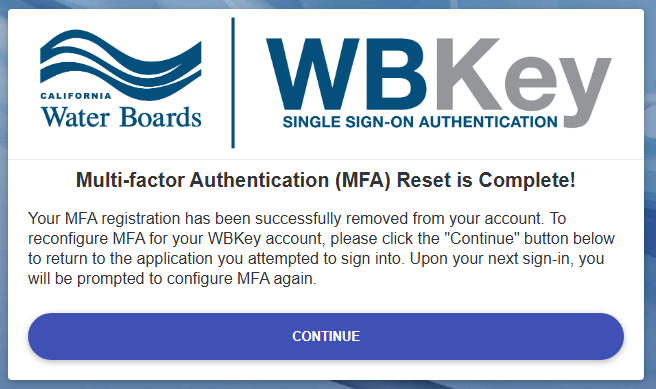
- Once the MFA reset finishes processing, you will receive a message stating that the MFA reset is complete. Click the 'Continue' button to be redirected back to the WBKey-supported application. Upon your next sign-in, you will be prompted to configure MFA again. Please review the Initial Login for New WBKey Account section - step 5 (Multi-factor Authentication (MFA) Enrollment) for further instructions on configuring your MFA again.
References
- WBKey Help Center: https://www2.waterboards.ca.gov/wbkey/help
- WBKey-Supported Applications: https://www2.waterboards.ca.gov/wbkey/#SupportedApplications